Examples Gallery
Explore real-world Templify templates with visual examples. Each example includes the template image, sample JSON data, and the resulting output.
Available Examples
1. Hello World
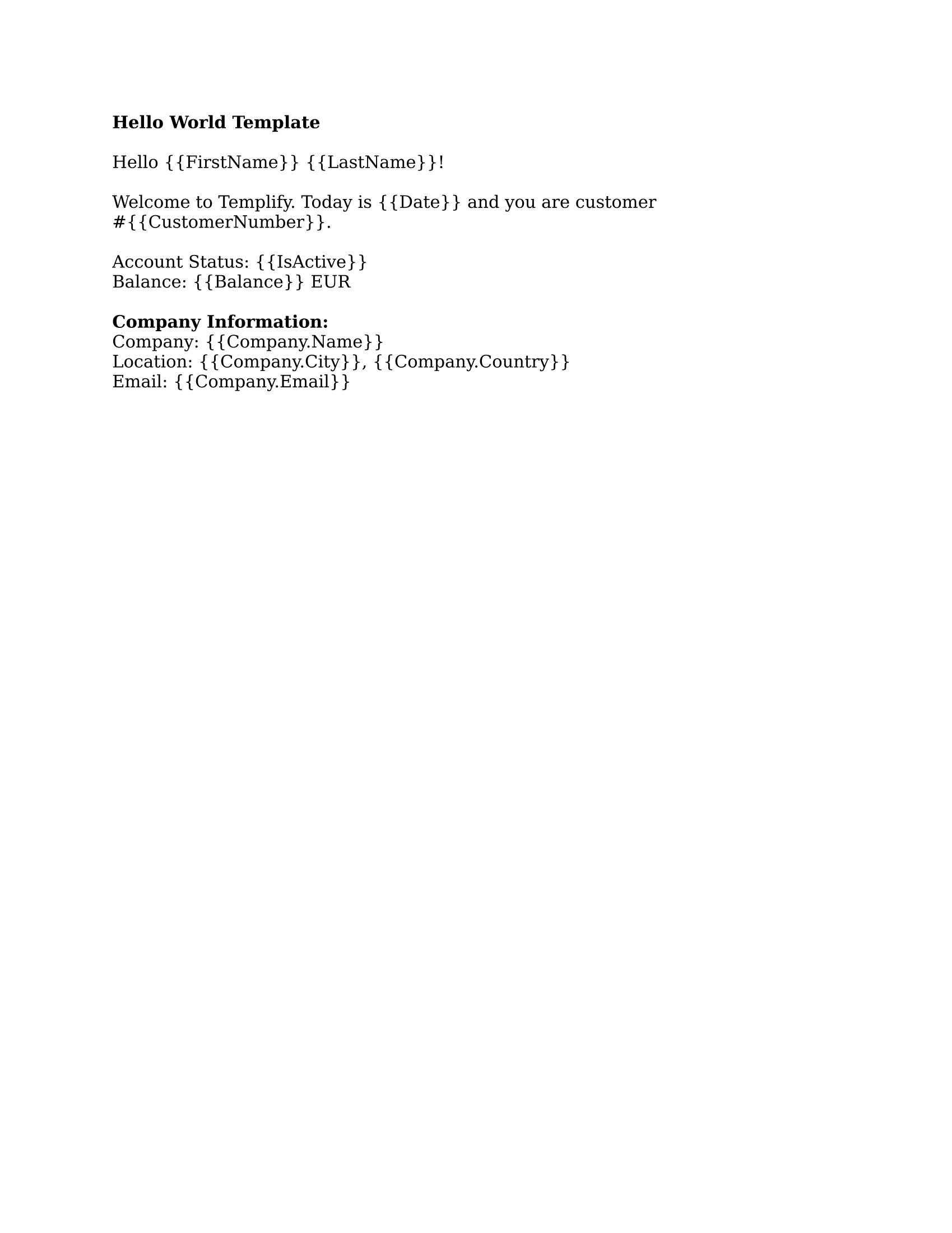
Description: A simple introduction template demonstrating basic placeholder replacement.
Features: - Simple placeholders - Text replacement
Template:
Output:

Download: - hello-world-template.docx - The Word template file - hello-world-output.docx - The processed result
2. Invoice Generator
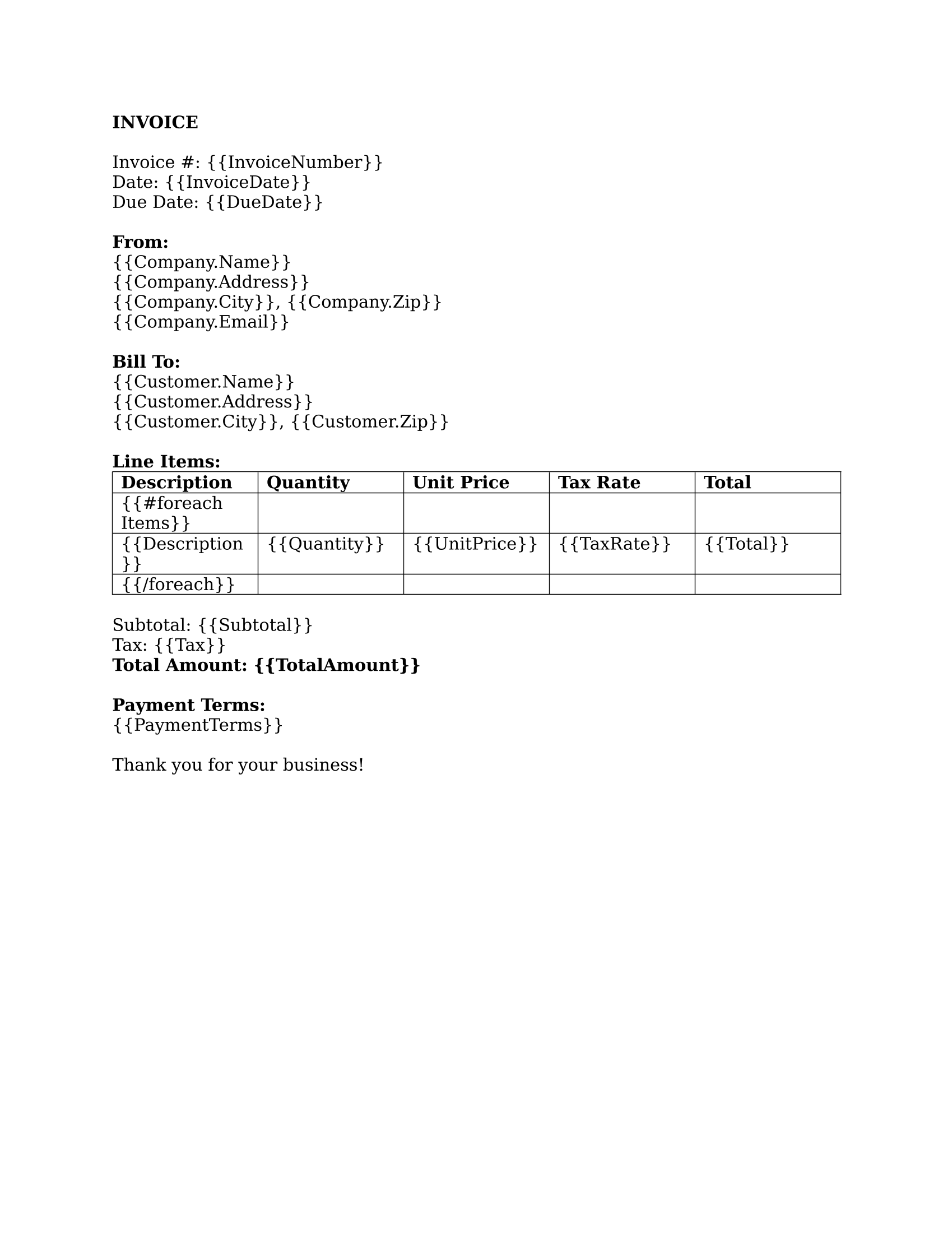
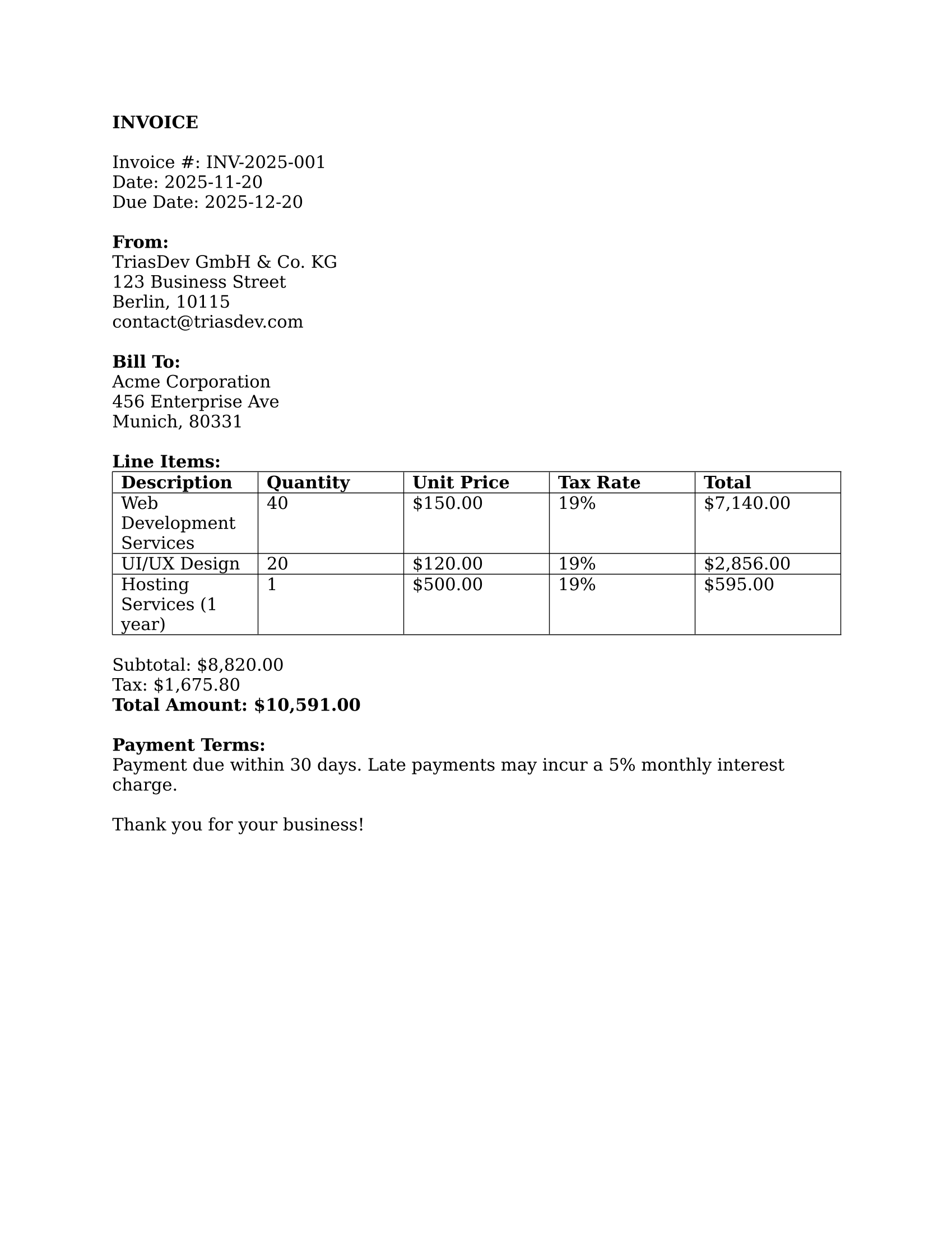
Description: A professional invoice template with line items, calculations, and customer information.
Features: - Nested properties (Customer.Name, Customer.Address) - Table row loops for line items - Number formatting - Conditional sections
Template:
Output:
Download: - invoice-template.docx - The Word template file - invoice-output.docx - The processed result
3. Conditional Content
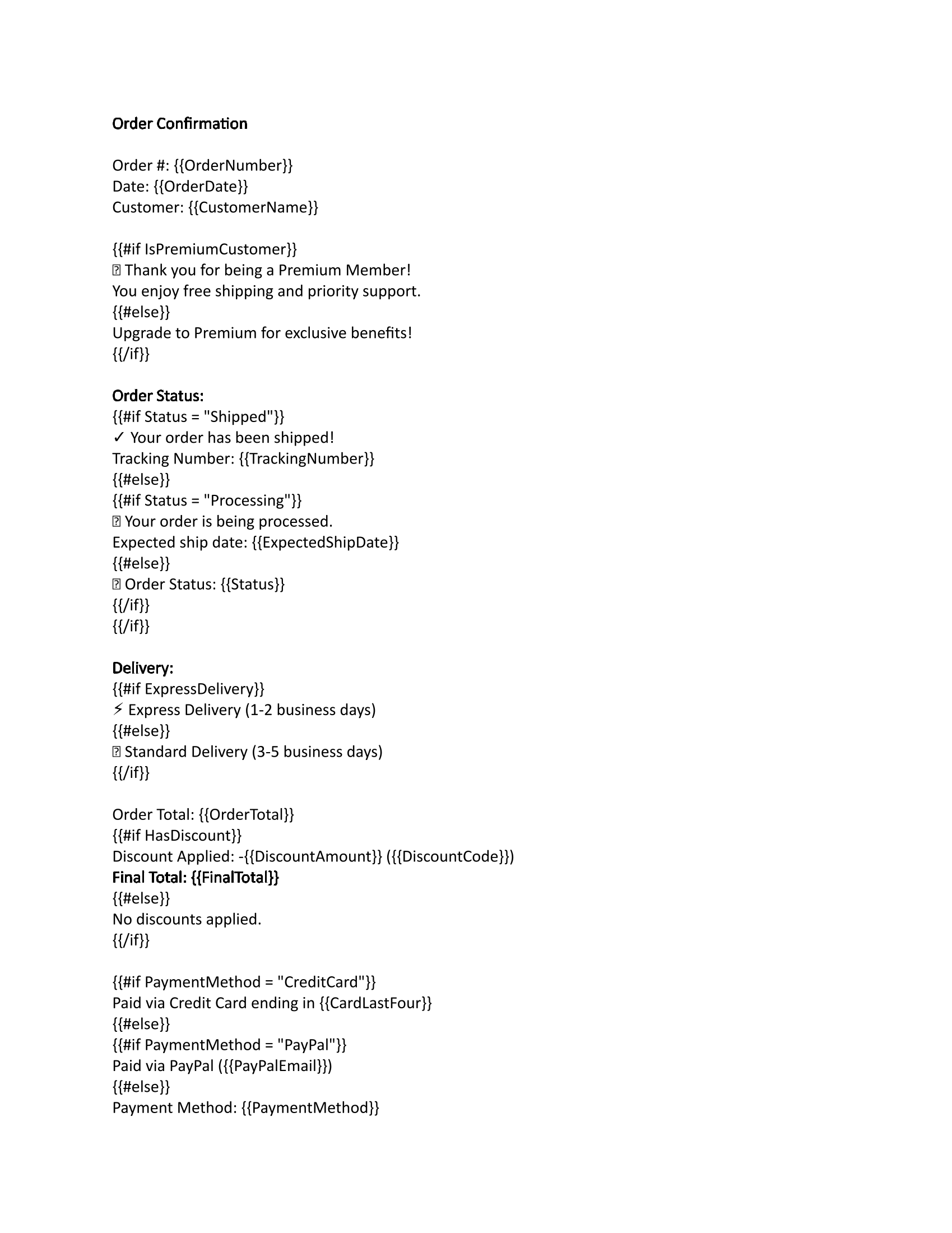
Description: Demonstrates conditional sections that show/hide based on data values.
Features: - If/else conditionals - Boolean flags - Status-based messaging - Multiple conditional sections
Template:
Output:
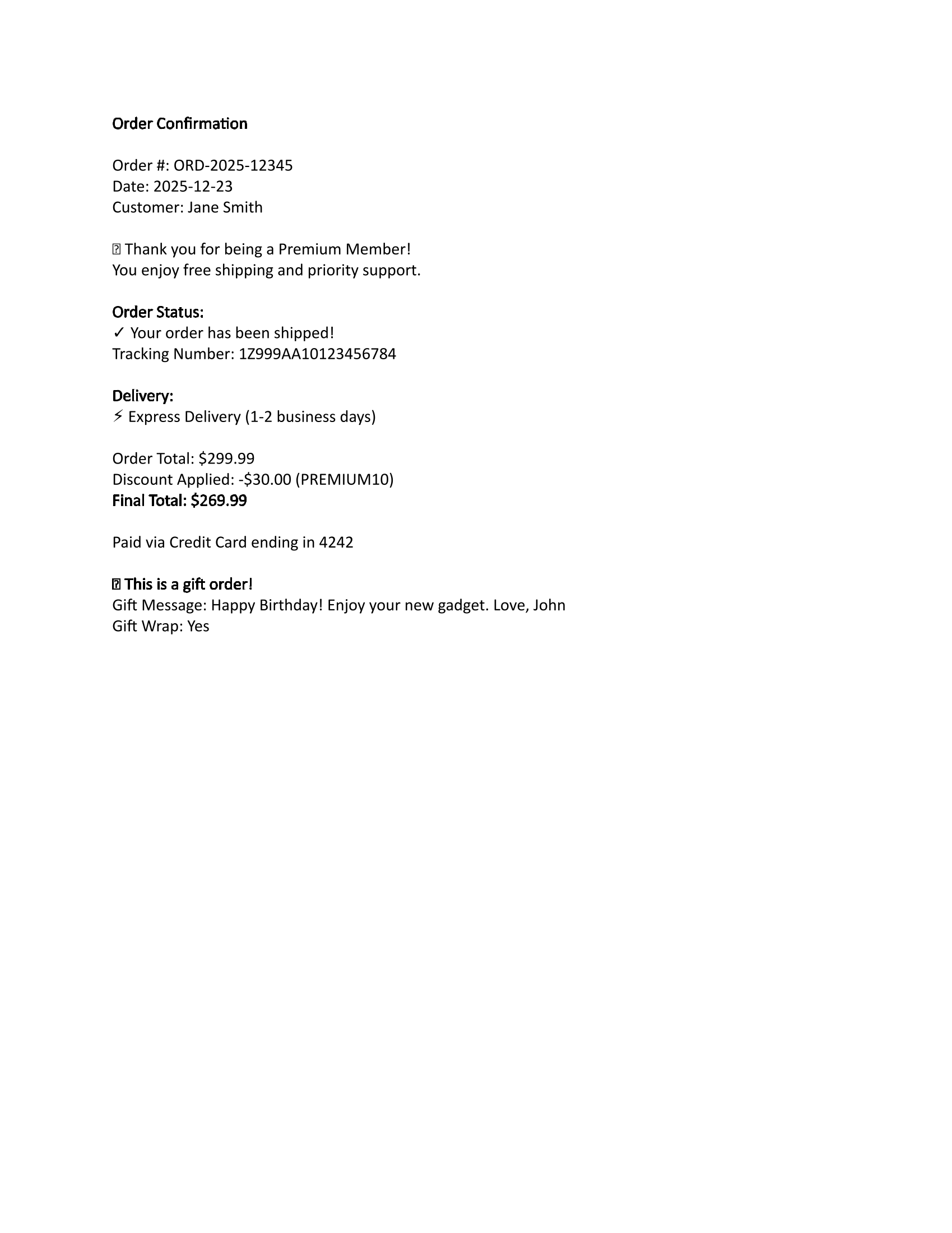
Download: - conditionals-template.docx - The Word template file - conditionals-output.docx - The processed result
More templates (advanced conditionals, warning report) are in the examples folder of the repository. The sample data for each example is defined in the DocumentGenerator tool that produces these files.
More Examples
The guides show more patterns with templates and data:
- Nested loops (for example departments with employees): Loops Guide → Nested Loops
- Optional sections and clauses: Conditionals Guide
- Tables with one row per item: Loops Guide → Table Loops
- C# code for many scenarios (reports, invoices, web applications): Examples.md on GitHub
Missing an example? Open an issue and describe your use case.
Using These Examples
Try Them Yourself
- Download the template file (.docx)
- Write a JSON file with matching data (see the output file for the values used)
- Process the template using:
- GUI Application: Open Templify GUI, select the template and JSON file, then click Process Template
- Demo app (from the source code):
dotnet run --project samples/TriasDev.Templify.Demo -- --template template.docx --data data.json --output output.docx
Modify for Your Needs
Each example template can be customized:
- Open the template in Microsoft Word
- Modify the placeholders, add new sections, change formatting
- Update the JSON data to match your changes
- Process and see your customized output!
Tips for Learning
Start Simple
Begin with the Hello World example to understand basic placeholders, then move to more complex examples.
Study the JSON Structure
Look at how the JSON data is structured and how it maps to the template placeholders. This will help you understand the dot notation (Customer.Name) and arrays.
Experiment
- Change values in the JSON to see how the output changes
- Add new placeholders to the template
- Try removing conditional sections
- Add more items to loops
Check the Output
Always compare the template to the output to see exactly what Templify does. This helps you understand: - Where data gets inserted - How loops repeat content - When conditionals show/hide sections
Need Help?
If you have questions about these examples:
- Getting Started Guide - Basic template creation tutorial
- Template Syntax Reference - Complete syntax guide
- Best Practices - Tips for creating good templates
- FAQ - Common questions and answers
Contribute Your Examples
Do you have a great template example? We'd love to include it! Check out our Contributing Guide to learn how to submit your examples.
Examples are automatically generated using the Templify DocumentGenerator tool to ensure they stay up-to-date with the latest features.