Tutorial 1: Hello World
Duration: 30 minutes Difficulty: Beginner Prerequisites: Quick Start Guide completed
What You'll Learn
By the end of this tutorial, you'll be able to: - Create a Word template with placeholders - Process templates with simple data - Access nested properties - Handle different data types (strings, numbers, dates, booleans) - Check processing results and handle missing variables
Prerequisites
- .NET 8.0 SDK or later installed
- Code editor (VS 2022, VS Code, or Rider)
- Templify NuGet package installed
- Microsoft Word (for creating templates)
Step 1: Set Up Your Project
Create a new console application:
mkdir TemplifyTutorial01
cd TemplifyTutorial01
dotnet new console
dotnet add package TriasDev.Templify
Step 2: Create Your First Template
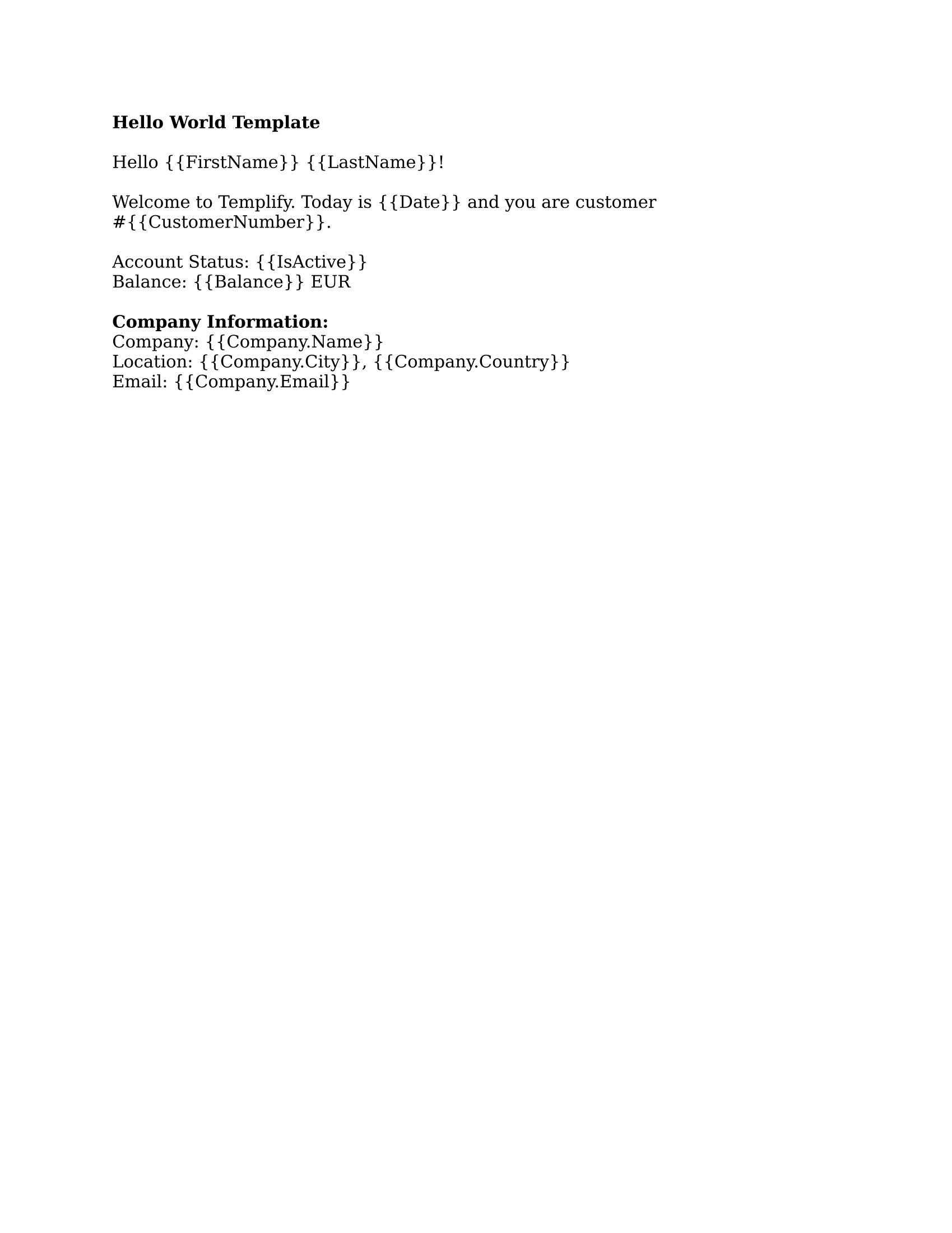
Open Microsoft Word and create a new document named hello-template.docx:
Hello {{FirstName}} {{LastName}}!

Welcome to Templify. Today is {{Date}} and you are customer #{{CustomerNumber}}.

Your account status: {{IsActive}}
Your balance: {{Balance}} EUR
Save it in your project directory.
Template Preview:
Important Tips:
- Type placeholders in one go without formatting changes
- Use double curly braces: {{VariableName}}
- No spaces inside the braces ({{ FirstName }} is not a placeholder)
- Variable names are case-sensitive
- Stick to letters, numbers, and underscores
Step 3: Write the Processing Code
Replace the contents of Program.cs:
using TriasDev.Templify.Core;

// Create sample data
var data = new Dictionary<string, object>
{
    ["FirstName"] = "John",
    ["LastName"] = "Doe",
    ["Date"] = DateTime.Now.ToString("yyyy-MM-dd"),
    ["CustomerNumber"] = 12345,
    ["IsActive"] = true,
    ["Balance"] = 1250.50m
};

// Process the template
var processor = new DocumentTemplateProcessor();

using var templateStream = File.OpenRead("hello-template.docx");
using var outputStream = File.Create("hello-output.docx");

ProcessingResult result = processor.ProcessTemplate(templateStream, outputStream, data);

// Check the results
if (!result.IsSuccess)
{
    Console.WriteLine($"✗ Processing failed: {result.ErrorMessage}");
    return;
}

Console.WriteLine($"✓ Document generated successfully!");
Console.WriteLine($"  Placeholders replaced: {result.ReplacementCount}");

if (result.MissingVariables.Any())
{
    Console.WriteLine($"\nWarning - Missing variables:");
    foreach (var variable in result.MissingVariables)
    {
        Console.WriteLine($"  - {variable}");
    }
}
Step 4: Run and Verify
Expected output:
Open hello-output.docx and verify all placeholders were replaced:
Hello John Doe!

Welcome to Templify. Today is 2025-01-15 and you are customer #12345.

Your account status: True
Your balance: 1250.50 EUR
Numbers are formatted with the processor's culture (PlaceholderReplacementOptions.Culture, the current culture
by default), so the balance may read 1250,50 on a German system.
Processed Document Preview:

You can see how all placeholders have been replaced with actual data from the dictionary.
Step 5: Working with Nested Data
Create a new template nested-template.docx:
Company: {{Company.Name}}
Address: {{Company.Address.Street}}, {{Company.Address.City}} {{Company.Address.Zip}}

Contact: {{Company.Contact.Name}} ({{Company.Contact.Email}})
Update your code:
var nestedData = new Dictionary<string, object>
{
    ["Company"] = new Dictionary<string, object>
    {
        ["Name"] = "Acme Corporation",
        ["Address"] = new Dictionary<string, object>
        {
            ["Street"] = "123 Main Street",
            ["City"] = "Springfield",
            ["Zip"] = "12345"
        },
        ["Contact"] = new Dictionary<string, object>
        {
            ["Name"] = "Jane Smith",
            ["Email"] = "jane.smith@acme.com"
        }
    }
};

using var templateStream2 = File.OpenRead("nested-template.docx");
using var outputStream2 = File.Create("nested-output.docx");

result = processor.ProcessTemplate(templateStream2, outputStream2, nestedData);
Console.WriteLine($"\n✓ Nested template processed!");
Console.WriteLine($"  Placeholders replaced: {result.ReplacementCount}");
Output document:
Company: Acme Corporation
Address: 123 Main Street, Springfield 12345

Contact: Jane Smith (jane.smith@acme.com)
Step 6: Using Objects (POCOs)
Instead of dictionaries, you can use your own classes:
// Define your classes
public class Company
{
    public string Name { get; set; }
    public Address Address { get; set; }
    public Contact Contact { get; set; }
}

public class Address
{
    public string Street { get; set; }
    public string City { get; set; }
    public string Zip { get; set; }
}

public class Contact
{
    public string Name { get; set; }
    public string Email { get; set; }
}

// Create data using objects
var objectData = new Dictionary<string, object>
{
    ["Company"] = new Company
    {
        Name = "Acme Corporation",
        Address = new Address
        {
            Street = "123 Main Street",
            City = "Springfield",
            Zip = "12345"
        },
        Contact = new Contact
        {
            Name = "Jane Smith",
            Email = "jane.smith@acme.com"
        }
    }
};

// Process exactly the same way (each run needs a fresh output stream)
using var templateStream3 = File.OpenRead("nested-template.docx");
using var outputStream3 = File.Create("object-output.docx");
result = processor.ProcessTemplate(templateStream3, outputStream3, objectData);
In a top-level program, put the class declarations at the end of Program.cs (after the statements). Property
names are matched case-insensitively; dictionary keys are case-sensitive.
The template syntax stays the same whether you use dictionaries or objects!
Step 7: Formatting Data
Pass raw values (numbers, dates, booleans) and let the template format them with format specifiers:
Date: {{Date:date:MMMM dd, yyyy}}
Amount: {{Amount:number:N2}}
Percentage: {{Percentage:number:P0}}
Price: {{Price:currency}}
Active: {{IsActive:yesno}}
Name: {{LastName:uppercase}}
using System.Globalization;

var formattedData = new Dictionary<string, object>
{
    ["Date"] = new DateTime(2025, 1, 15),
    ["Amount"] = 1234.56m,
    ["Percentage"] = 0.15,
    ["Price"] = 99.99m,
    ["IsActive"] = true,
    ["LastName"] = "Doe"
};

var enProcessor = new DocumentTemplateProcessor(new PlaceholderReplacementOptions
{
    Culture = CultureInfo.GetCultureInfo("en-US")
});
With en-US this produces January 15, 2025, 1,234.56, 15%, $99.99, Yes and DOE; with de-DE the
same template gives Januar 15, 2025, 1.234,56, 15 %, 99,99 € and Ja. Format specifiers only apply to
values of the matching type (a number stored as a string is not formatted by :currency), so you can still
pre-format values in code when you need full control. See the
Format Specifiers guide.
Step 8: Error Handling
Always check for errors in production code:
try
{
    using var templateStream = File.OpenRead("template.docx");
    using var outputStream = File.Create("output.docx");

    ProcessingResult result = processor.ProcessTemplate(templateStream, outputStream, data);

    if (!result.IsSuccess)
    {
        // Template syntax or data errors, e.g. an {{#if}} without {{/if}}
        Console.WriteLine($"✗ Processing failed: {result.ErrorMessage}");
        return;
    }

    if (result.MissingVariables.Any())
    {
        Console.WriteLine("⚠ Warning - Missing variables:");
        foreach (var variable in result.MissingVariables)
        {
            Console.WriteLine($"  - {variable}");
        }
    }

    foreach (ProcessingWarning warning in result.Warnings)
    {
        Console.WriteLine($"  {warning}");
    }

    Console.WriteLine($"✓ Success! Replaced {result.ReplacementCount} placeholders.");
}
catch (FileNotFoundException ex)
{
    Console.WriteLine($"✗ Template file not found: {ex.Message}");
}
catch (Exception ex)
{
    Console.WriteLine($"✗ Unexpected error: {ex.Message}");
}
Template and data problems never throw: they come back as IsSuccess == false. Exceptions are only thrown for
I/O errors (like the missing file above), invalid arguments, and missing variables when
MissingVariableBehavior.ThrowException is configured.
Complete Example
Here's a complete, production-ready example combining everything:
using TriasDev.Templify.Core;

public class Program
{
    public static void Main()
    {
        var processor = new DocumentTemplateProcessor();

        // Example 1: Simple data
        ProcessSimpleTemplate(processor);

        // Example 2: Nested data
        ProcessNestedTemplate(processor);

        // Example 3: Formatted data
        ProcessFormattedTemplate(processor);

        Console.WriteLine("\n✓ All examples completed!");
    }

    static void ProcessSimpleTemplate(DocumentTemplateProcessor processor)
    {
        Console.WriteLine("=== Simple Template ===");

        var data = new Dictionary<string, object>
        {
            ["FirstName"] = "John",
            ["LastName"] = "Doe",
            ["Email"] = "john.doe@example.com",
            ["MemberSince"] = DateTime.Now.AddYears(-2).ToString("yyyy"),
            ["IsActive"] = true
        };

        ProcessTemplate(processor, "simple-template.docx", "simple-output.docx", data);
    }

    static void ProcessNestedTemplate(DocumentTemplateProcessor processor)
    {
        Console.WriteLine("\n=== Nested Template ===");

        var data = new Dictionary<string, object>
        {
            ["User"] = new
            {
                Name = "Jane Smith",
                Email = "jane@example.com",
                Address = new
                {
                    Street = "456 Oak Ave",
                    City = "Portland",
                    State = "OR",
                    Zip = "97201"
                }
            }
        };

        ProcessTemplate(processor, "nested-template.docx", "nested-output.docx", data);
    }

    static void ProcessFormattedTemplate(DocumentTemplateProcessor processor)
    {
        Console.WriteLine("\n=== Formatted Template ===");

        var data = new Dictionary<string, object>
        {
            // Formatted in the template, e.g. {{InvoiceDate:date:MMMM dd, yyyy}} and {{Amount:currency}}
            ["InvoiceDate"] = DateTime.Now,
            ["DueDate"] = DateTime.Now.AddDays(30),
            ["Amount"] = 1234.56m,
            ["Tax"] = 123.46m,
            ["Total"] = 1358.02m
        };

        ProcessTemplate(processor, "invoice-template.docx", "invoice-output.docx", data);
    }

    static void ProcessTemplate(
        DocumentTemplateProcessor processor,
        string templatePath,
        string outputPath,
        Dictionary<string, object> data)
    {
        try
        {
            using var templateStream = File.OpenRead(templatePath);
            using var outputStream = File.Create(outputPath);

            ProcessingResult result = processor.ProcessTemplate(templateStream, outputStream, data);

            if (result.IsSuccess)
            {
                Console.WriteLine($"  ✓ {outputPath} created");
                Console.WriteLine($"    Placeholders: {result.ReplacementCount}");

                if (result.MissingVariables.Any())
                {
                    Console.WriteLine($"    ⚠ Missing: {string.Join(", ", result.MissingVariables)}");
                }
            }
            else
            {
                Console.WriteLine($"  ✗ Failed: {result.ErrorMessage}");
            }
        }
        catch (FileNotFoundException)
        {
            Console.WriteLine($"  ⊘ Template not found: {templatePath}");
        }
        catch (Exception ex)
        {
            Console.WriteLine($"  ✗ Error: {ex.Message}");
        }
    }
}
What You Learned
✅ Creating templates with {{placeholder}} syntax
✅ Processing templates with DocumentTemplateProcessor
✅ Nested data access using dot notation
✅ Different data types (strings, numbers, dates, booleans)
✅ Using objects instead of dictionaries
✅ Formatting data with format specifiers
✅ Error handling with ProcessingResult
✅ Production-ready patterns for robust code
Common Issues & Solutions
Issue: Placeholders not replaced
Solution: Check spelling (case-sensitive!), verify data provided, check MissingVariables list
Issue: "File is corrupted" error
Solution: Make sure to use using statements to properly dispose streams, and use a new output stream for every document
Issue: Word splits placeholder into several runs
Solution: Nothing to do: Templify reads the paragraph text as a whole, so split runs are handled. If a placeholder is still not replaced, check for spaces inside the braces or a typo
Next Steps
Now that you understand the basics, move on to more advanced features:
- Tutorial 2: Invoice Generator - Build a real-world invoice with loops and table rows
- Conditionals and Loops - Dynamic content generation
- Format Specifiers and Boolean Expressions - Formatting and logic in templates
Additional Resources
Happy templating! 🚀